Overall, installation and set up was easy, so going to go over some of the lessons learned.
Link to unit bought (Eonon Android 13 Car Stereo for Mazda 3 2010-2013, Octa Core 6+64GB): https://www.amazon.com/dp/B09HGWF5G3?ref=ppx_yo2ov_dt_b_fed_asin_title
First, this YouTube video was super helpful in learning how to install the unit:
https://www.youtube.com/watch?app=desktop&v=Ll4O1PSv_KU
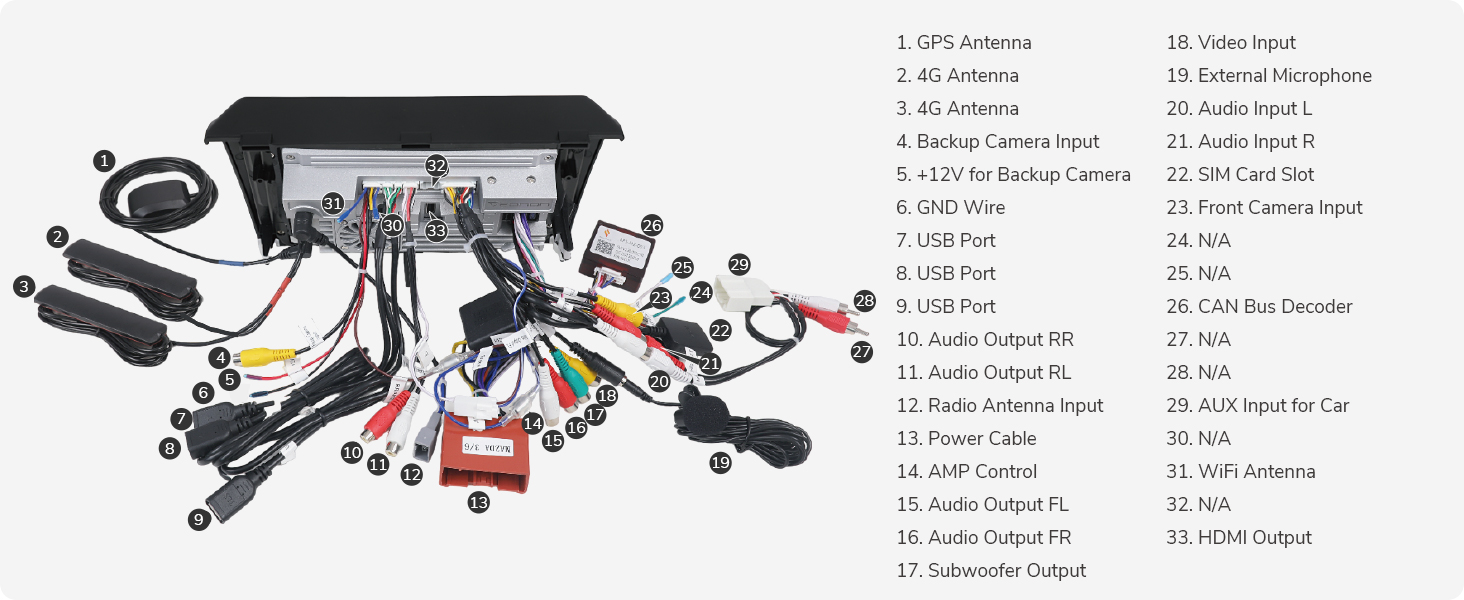
On a high level, the head unit requires three cables to attach to the Mazda 3 (referring to the above diagram), and I took them out of the OEM head unit in this order:
- “Power Cable” (#13)
- AUX input for car (#29)
- Radio Antenna input (#12)
When removing, the power cable (#13) was the hardest. There is a latch at the bottom of it you have to press, but even after pressing you have to use a lot of force to get it out. Once that was out, mostly everything to get out and put back in was easy)
I will say though I still needed to understand some of the wire mappings using the instruction booklet. These ones in particular (from the above picture):
- There are many audio out RCA ports (ie 10, 11, 15, and 16), but at the end of the day, the sound is either coming out of the head unit from 20 and 21 (ie. the aux), or what is labeled 13 (Power cable”, since if you see the pin mappings, there are audio labels there… or maybe it just controls how much power goes to each speaker in the car)
I ended up attaching the GPS, USB 2/3, and mic cables, but honestly I think the only thing I just needed to attach is the GPS. Only thing I didn’t end up attaching is the USB1 cable (and also didn’t insert a sim inside the simcard holder). FYI the GPS, USB 2/3, and mic cables are going through an existing hole in the glove compartments.
Surprising feature that still worked with the car after installation:
- Steering wheel’s volume buttons
- Steering wheel’s advance track button
- When using the radio, the radio station gets displayed in the in unit (blue) dashboard screen
- Using head lights causes unit buttons to light up
After the unit was fully installed, these are things I did with the unit:
- In settings, connected the unit to my phone’s personal hotspot so it could get the time. Also told it to use my current coordinates for the timezone (to test out the GPS). Opened the unit’s map app to also confirm it knew where I was
- Played with the Radio, which is when I found out the station also shows in the car’s in unit display
- Opened the CarPlay app, which required to connect to my phone using Bluetooth (NOTE: Cannot use CarPlay wired with this unit, AND if you are using CarPlay, cannot have a hotspot with the phone since CarPlay itself used both bluetooth and wifi)
- Opened Maps app in CarPlay, and tested out to see if Siri could understand where I wanted to go with the mic being inside the glove compartment. It did (which makes me believe it is using the mic on the external part of the actual head unit)
- In settings, turned off the reverse detection, since putting the car in reverse will make the screen go blank if you do’t do this (Settings > Car > Factory (code is “126”)> Reverse Detection > Disable)
- Updated the head unit’s OS but connecting it to my phone’s hotspot and going to Settings > System > Check for updates (there was an OS update, and then after that there was an MCU update)
- In the Amplifier app on the unit, checked to make sure disabling and enabling Front Left, Front Right, Back Left, Back right speakers worked
- In the Amplifier app on the unit, under effects, enabled the Bass boosting feature
- In the Amplifier app on the unit, with the Equalizer, matched Spotify’s dance equalizer settings. At the time of this writing, still playing with the equalizer, but I think its getting close to what I want